Marking attendance on site
Open the project and tap Attendance on Project Home. You are asked whether you are marking Labour or Vendor attendance.

Attendance splits into Labour and Vendor. Choose Labour. The Labour Attendance screen opens on today by default. Use the arrows either side of the date to move to a different day.
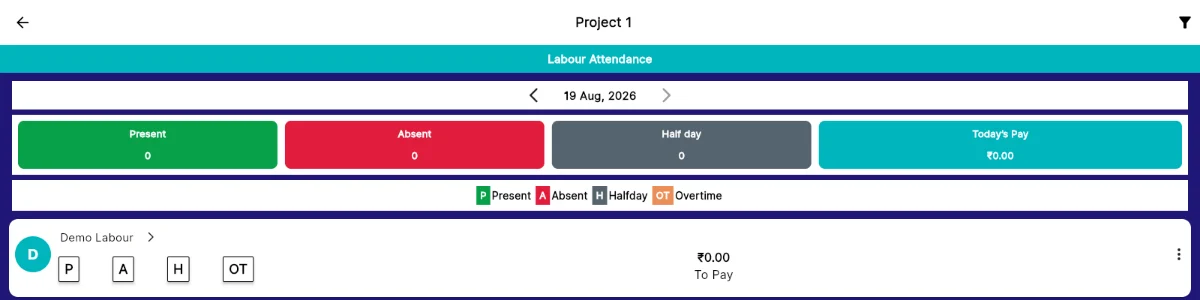
Labour Attendance: the date navigator, the day summary, the legend, and a row per person. Each person has four buttons: P for present, A for absent, H for half day and OT for overtime. Tap the one that applies. The legend under the summary bar shows what each letter means.
The coloured bar at the top keeps a running count of Present, Absent and Half day for the day you are looking at, and Today’s Pay totals what has been earned against those marks.
Each row also shows the amount To Pay for that person. Use the filter icon at the top right to narrow a long list down before you start marking.